Month: March 2017

  • Use EavSetup to Import Attributes

    I recently had the issue that I needed to use the \Magento\Eav\Setup\EavSetup outside the setup-context.
    To be a bit more concrete, I wanted to import attribute-sets, attributes and attribute-options without using an install-script.
    My first idea was

    in magento2 you can easily inject the ‘EavSetup’ via constructor injection and then use it in your own class

    First try

    So I injected into my class which worked out well in the development-mode.

    /**
     * SomeAttribute constructor.
     *
     * @param \Some\Own\AttributeContext $context
     * @param \Magento\Eav\Setup\EavSetup $eavSetup
     * @param string $entityTypeId
     *
     */
    public function __construct(
        \Some\Own\AttributeContext $context,
        \Magento\Eav\Setup\EavSetup $eavSetup,
        $entityTypeId = Product::ENTITY
    ) {
        parent::__construct($context);
    
        $this->eavSetup = $eavSetup;
        $this->entityTypeId = $entityTypeId;
    }

    But using the same code with the production-mode a fatal error occurred with a message like

    ERROR: PHP Fatal error:  Uncaught TypeError: Argument 1 passed to Magento\Setup\Module\DataSetup::__construct() must be an instance of Magento\Framework\Module\Setup\Context, 
    instance of Magento\Framework\ObjectManager\ObjectManager given, 
    called in [...]/src/vendor/magento/framework/ObjectManager/Factory/AbstractFactory.php on line 93 and defined in [...]/src/setup/src/Magento/Setup/Module/DataSetup.php:57
    

    After a short research and some debugging, it turned out that the “production”-mode was not the issue. The root of the problem was the output “setup:di:compile”-command created. And more over how the EavSetup is instantiated in general.

    A brief digression

    For better testing I wrote a short php-file which tries to instantiate my class with the help of the object-manager. It is based on the ‘index.php’ without the $bootstrap->run($app); line, instead of the run-method I call “getObjectManager” and work with the object-manager for my tests.

    With these information I started my analysis how magento does it and how could I use the “EavSetup” for my purposes.
    Here you can see some classes that are relevant in instantiating an EavSetup:

    • \Magento\Setup\Model\ObjectManagerProvider
    • \Magento\Setup\Module\DataSetupFactory
    • \Zend\ServiceManager\ServiceManager
    • \Magento\Framework\ObjectManager\Factory\Compiled::create
    • \Magento\Framework\ObjectManager\Config\Compiled::getArguments

    The main issue was that \Magento\Framework\ObjectManager\Config\Compiled::getArguments  did not return the correct arguments.
    So while I was not able to pass the arguments as needed, I had to figure out another way how to use the “EavSetup” in my class.

    After debugging the magento instantiation of the “EavSetup”, I started to forge the magento process in my construct.

    The Solution

    The resulting solution looks something like this

    /**
     * SomeAttribute constructor.
     *
     * @param \Some\Own\AttributeContext $context
     * @param \Magento\Eav\Setup\EavSetupFactory $eavSetupFactory
     * @param string $entityTypeId
     *
     */
    public function __construct(
        \Some\Own\AttributeContext $context,
        \Magento\Eav\Setup\EavSetupFactory $eavSetupFactory,
        $entityTypeId = Product::ENTITY
    ) {
        parent::__construct($context);
    
        $serviceLocator = new \Zend\ServiceManager\ServiceManager();
        $serviceLocator->setService(\Magento\Setup\Mvc\Bootstrap\InitParamListener::BOOTSTRAP_PARAM, []);
    
        $provider = new \Magento\Setup\Model\ObjectManagerProvider($serviceLocator);
    
        $dataSetupFactory = new \Magento\Setup\Module\DataSetupFactory($provider);
        /** @var \Magento\Framework\Setup\SchemaSetupInterface | \Magento\Framework\Setup\ModuleDataSetupInterface $setup */
        $setup = $dataSetupFactory->create();
        $this->eavSetup = $eavSetupFactory->create(['setup' => $setup]);
        $this->entityTypeId = $entityTypeId;
    }

    Let me just explain in a few words what I had to do.

    For a better understanding let us move from bottom to top, my goal was to create a “EavSetup” instance to reach this goal I had to use the EavFactorySetup->create()  method.
    The EavSetupFactory has a dependency to the DataSetupFactory which itself needs a ObjectManagerProvider instance injected.
    This is the interesting point in this manual dependency injection flow:
    the ObjectManagerProvider now needs a ServiceManager to create the instance.  
    That’s the main cause of our issue with di:compile and production mode. This dependency cannot be injected by the default ObjectManager and thus the above mentioned error occured.

    So after manually building the dependencies and creating the objects, we could work around this issue.

    In case you haven’t seen how the “setup/index.php” “application” works you should have a closer look at that.


  • Use Swagger to generate a full functional Magento API Client

    Use Swagger to generate a full functional Magento API Client

    Magento 2 comes with a nice swagger schema which describes the Webapi. The Magento guys were very clever to choose swagger. It not only comes with a schema, but moreover it is a complete interactive API client as well.

    A swagger schema is a JSON document to formalize the REST API. Formalized documents have the big advantage that you can process the data with a machine. One idea I had was to create a PHP API for the Magento 2 API. Fortunately the swagger guys created a code generator tool. I really like the idea to generate code out of the schema. The swagger code-gen tool comes with support for multiple languages. PHP is one of the standard languages.

    The code generator tool can be found here: http://swagger.io/swagger-codegen/

    If you are on a mac it’s possible to install the code generator with homebrew.

    brew install swagger-codegen

    After the installation you can test the tool with the help command.

    swagger-codegen help

    On my machine i can see this help output. Works!

    usage: swagger-codegen-cli <command> [<args>]
    
    The most commonly used swagger-codegen-cli commands are:
        config-help   Config help for chosen lang
        generate      Generate code with chosen lang
        help          Display help information
        langs         Shows available langs
        meta          MetaGenerator. Generator for creating a new template set and configuration for Codegen.  The output will be based on the language you specify, and includes default templates to include.
        version       Show version information
    
    See 'swagger-codegen-cli help <command>' for more information on a specific
    command.

    Run the generator

    Now we are able to run the code generator. I used the schema from public developer documentation. You can also use your own schema from an existing installation.

    swagger-codegen generate -i http://devdocs.magento.com/swagger/schemas/latest-2.1.schema.json -l php
    cd SwaggerClient-php
    composer install --prefer-dist

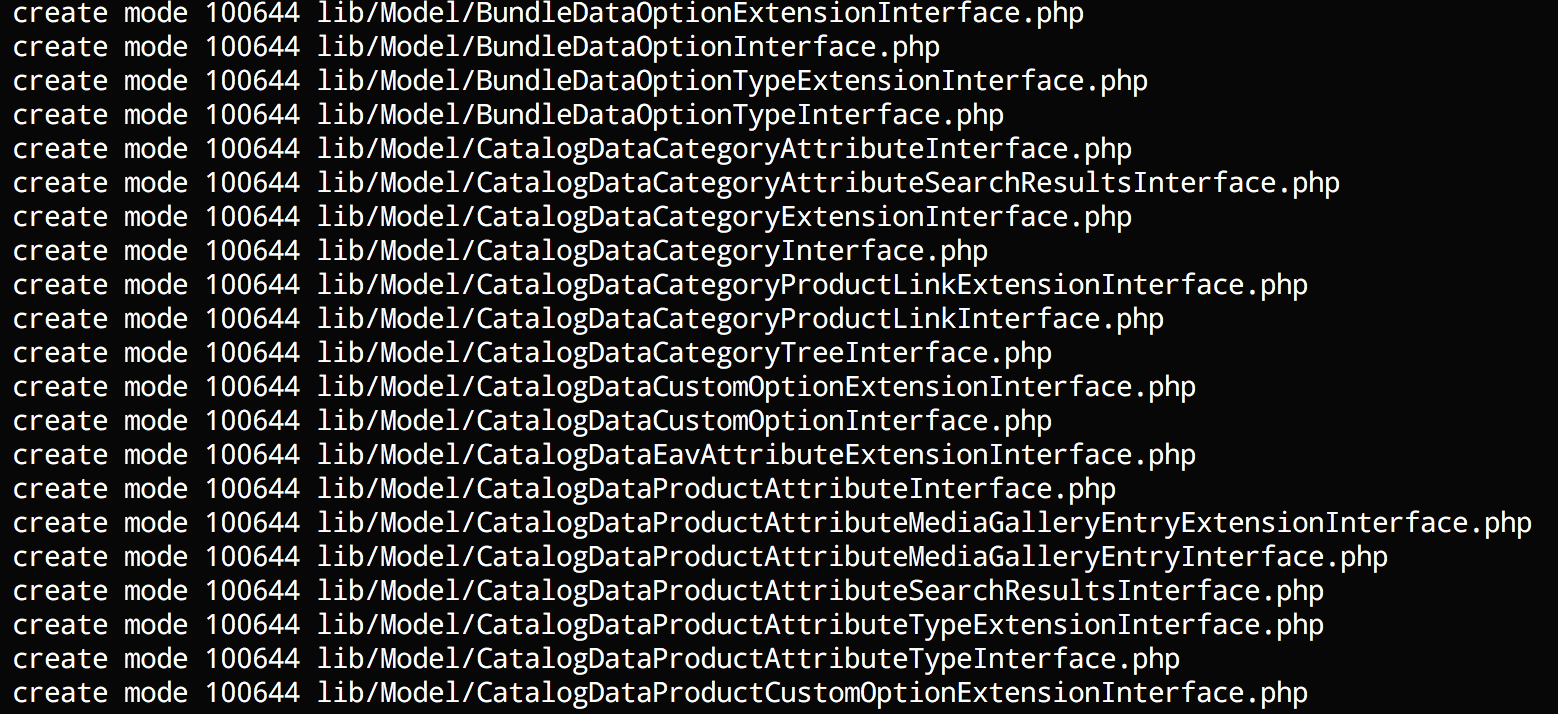
    You should see a long list of generated classes like this:

    Run test unit tests

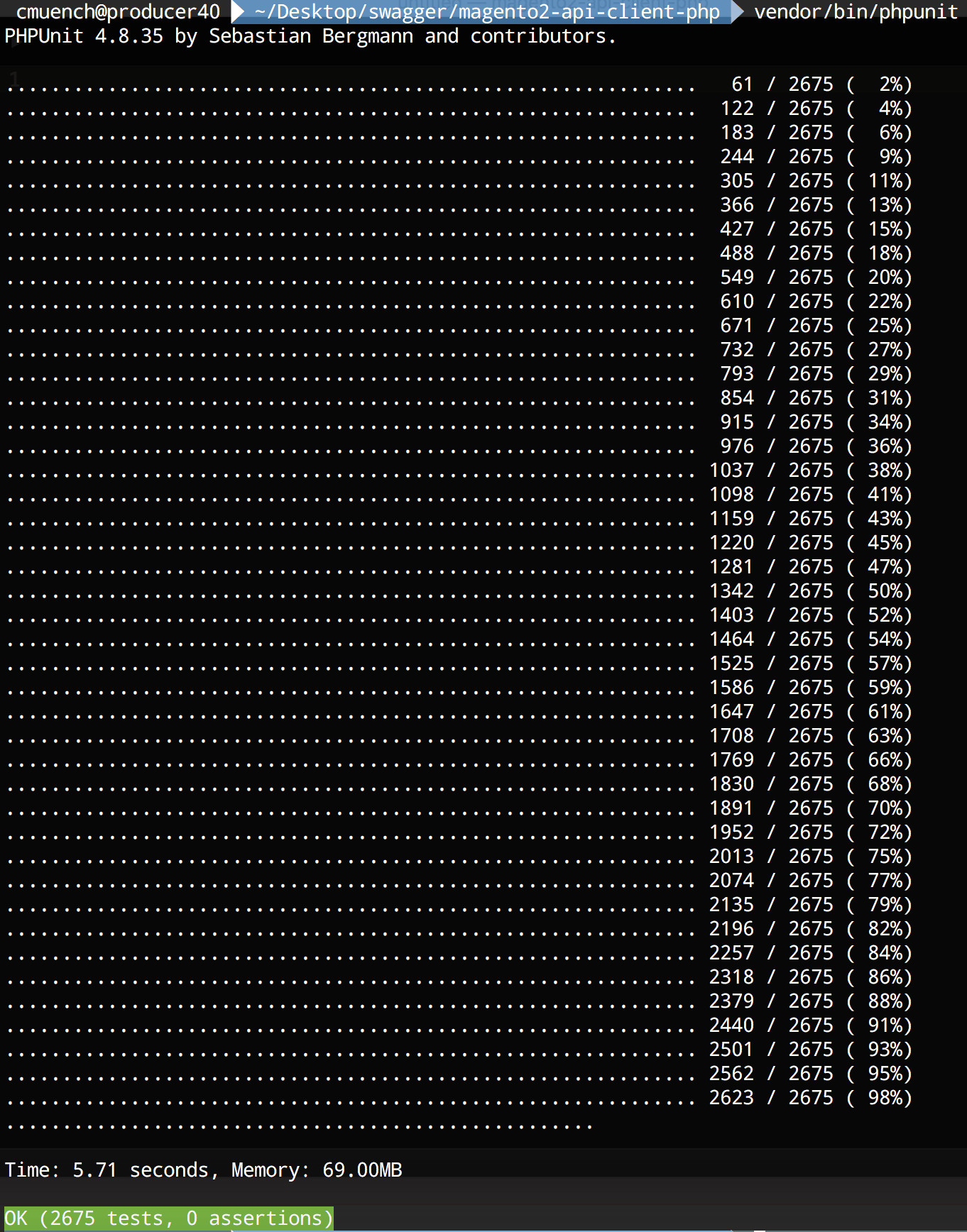
    After the code generation is done, we should run the generated unit tests. You can run the tests by typing vendor/bin/phpunit in the project folder.

    Test the new generated client

    After that we can try our freshly generated API client library.

    As an example we will fetch all the installed Magento modules of our shop instance.

    <?php
    require_once __DIR__ . '/vendor/autoload.php';
    
    $baseUrl = '{{YOUR_SHOP_URL}}/rest';
    $token = 'bearer {{YOUR_API_TOKEN}}';
    
    $config = new \Swagger\Client\Configuration();
    $config->setHost($baseUrl);
    $config->addDefaultHeader('Authorization', $token);
    
    $apiClient = new \Swagger\Client\ApiClient($config);
    
    $apiInstance = new \Swagger\Client\Api\BackendModuleServiceV1Api($apiClient);
    
    try {
        $result = $apiInstance->backendModuleServiceV1GetModulesGet();
        print_r($result);
    } catch (Exception $e) {
        echo $e->getMessage();
    }

    Save the script as installed_modules.php and replace {{YOUR_SHOP_URL}}  with a local or remote shop url and {{YOUR_API_TOKEN}} with a API bearer token of your user. A brief description about the generation of API-Tokens can be found in the developer documentation topic “Token-based authentication“.

    Now run the script with php installed_modules.php.

    On my local machine I am getting this output:

    Array
    (
        [0] => Magento_Store
        [1] => Magento_AdvancedPricingImportExport
        [2] => Magento_Directory
        [3] => Magento_Theme
        [4] => Magento_Backend
        [5] => Magento_Backup
        [6] => Magento_Eav
        [7] => Magento_Customer
        [8] => Magento_BundleImportExport
        [9] => Magento_AdminNotification
        [10] => Magento_CacheInvalidate
        [11] => Magento_Indexer
        [12] => Magento_Cms
        [13] => Magento_CatalogImportExport
        [14] => Magento_Catalog
        [15] => Magento_Rule
        [16] => Magento_Msrp
        [17] => Magento_Search
        [18] => Magento_Bundle
        [19] => Magento_Quote
        [20] => Magento_CatalogUrlRewrite
        [21] => Magento_Widget
        [22] => Magento_SalesSequence
        [23] => Magento_CheckoutAgreements
        [24] => Magento_Payment
        [25] => Magento_Downloadable
        [26] => Magento_CmsUrlRewrite
        [27] => Magento_Config
        [28] => Magento_ConfigurableImportExport
        [29] => Magento_CatalogInventory
        [30] => Magento_SampleData
        [31] => Magento_Contact
        [32] => Magento_Cookie
        [33] => Magento_Cron
        [34] => Magento_CurrencySymbol
        [35] => Magento_CatalogSearch
        [36] => Magento_CustomerImportExport
        [37] => Magento_CustomerSampleData
        [38] => Magento_Deploy
        [39] => Magento_Developer
        [40] => Magento_Dhl
        [41] => Magento_Authorization
        [42] => Magento_User
        [43] => Magento_ImportExport
        [44] => Magento_Sales
        [45] => Magento_CatalogRule
        [46] => Magento_Email
        [47] => Magento_EncryptionKey
        [48] => Magento_Fedex
        [49] => Magento_GiftMessage
        [50] => Magento_Checkout
        [51] => Magento_GoogleAnalytics
        [52] => Magento_GoogleOptimizer
        [53] => Magento_GroupedImportExport
        [54] => Magento_GroupedProduct
        [55] => Magento_Tax
        [56] => Magento_DownloadableImportExport
        [57] => Magento_Braintree
        [58] => Magento_Integration
        [59] => Magento_LayeredNavigation
        [60] => Magento_Marketplace
        [61] => Magento_MediaStorage
        [62] => Magento_ConfigurableProduct
        [63] => Magento_MsrpSampleData
        [64] => Magento_Multishipping
        [65] => Magento_NewRelicReporting
        [66] => Magento_Newsletter
        [67] => Magento_OfflinePayments
        [68] => Magento_SalesRule
        [69] => Magento_OfflineShipping
        [70] => Magento_PageCache
        [71] => Magento_Captcha
        [72] => Magento_Paypal
        [73] => Magento_Persistent
        [74] => Magento_ProductAlert
        [75] => Magento_Weee
        [76] => Magento_ProductVideo
        [77] => Magento_CatalogSampleData
        [78] => Magento_Reports
        [79] => Magento_RequireJs
        [80] => Magento_Review
        [81] => Magento_BundleSampleData
        [82] => Magento_Rss
        [83] => Magento_DownloadableSampleData
        [84] => Magento_Authorizenet
        [85] => Magento_OfflineShippingSampleData
        [86] => Magento_ConfigurableSampleData
        [87] => Magento_SalesSampleData
        [88] => Magento_ProductLinksSampleData
        [89] => Magento_ThemeSampleData
        [90] => Magento_ReviewSampleData
        [91] => Magento_SendFriend
        [92] => Magento_Ui
        [93] => Magento_Sitemap
        [94] => Magento_CatalogRuleConfigurable
        [95] => Magento_Swagger
        [96] => Magento_Swatches
        [97] => Magento_SwatchesSampleData
        [98] => Magento_GroupedProductSampleData
        [99] => Magento_TaxImportExport
        [100] => Magento_TaxSampleData
        [101] => Magento_GoogleAdwords
        [102] => Magento_CmsSampleData
        [103] => Magento_Translation
        [104] => Magento_Shipping
        [105] => Magento_Ups
        [106] => Magento_UrlRewrite
        [107] => Magento_CatalogRuleSampleData
        [108] => Magento_Usps
        [109] => Magento_Variable
        [110] => Magento_Version
        [111] => Magento_Webapi
        [112] => Magento_SalesRuleSampleData
        [113] => Magento_CatalogWidget
        [114] => Magento_WidgetSampleData
        [115] => Magento_Wishlist
        [116] => Magento_WishlistSampleData
        [117] => N98_Tutorial
        [118] => N98_Tutorial2
    )

    Conclusion

    That’s it. We have a full functional REST API client in PHP to call Magento 2 instances. The generated code is not perfect but very usable.

    You can try it by yourself. For all lazy developers we pushed the code in a public github repository.

    https://github.com/netz98/magento2-swagger-api-client-demo

    Have fun!

  • Nice to know: Install N98-Magerun via Composer

    There is a so far merely undocumented installation procedure for Magerun that is extremely handy in project configurations.

    You just require Magerun within the Magento project and you can then execute it from the vendor’s bin folder:

    $ composer require n98/magerun2
    [...]
    $ ./vendor/bin/n98-magerun2 --version
    n98-magerun2 version 1.3.2 by netz98 GmbH

    Afterwards if you commit the composer.json  and composer.lock  files it is a take-away for the whole team.

    So it is regardless whether you’re running it locally, inside a docker container or a complete different system. After composer install, n98-magerun2 is available on all target systems.

    Just Another Install Example

    Here another example I just did with one of our systems that run via docker on my end, but I’m installing on my local system (the folder is mounted inside the docker container):

    $ composer require n98/magerun2 --ignore-platform-reqs
    [...]

    The –ignore-platform-reqs  switch make composer to install it even despite my local system does not have all Magento2 requirements.

  • Introducing MageDeploy2

    Introducing MageDeploy2

    In our recent post series about Deploying Magento2 using Jenkins and deployer I was showing you how our Deployments are set up.

    In case you haven’t read them and are interested in the details here are the links:

    During the time of writing those articles I realized quite some improvements and generalizations that could be done to make this deployment more maintainable, extensible and customizable. I wanted to have a deployment setup that allows local execution with colored output, execution on a build server without interaction and usage in a build pipeline.
    Furthermore I wanted the deployment setup not only to be usable within netz98 but also by the whole Magento community.

    What I came up with I called MageDeploy2 which I will introduce with this post.

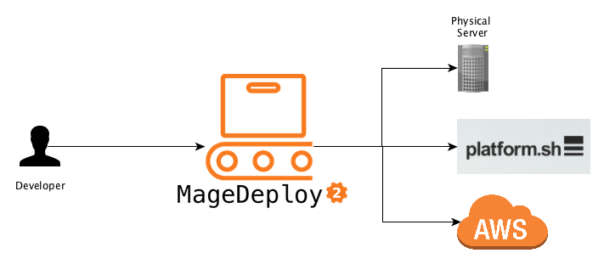
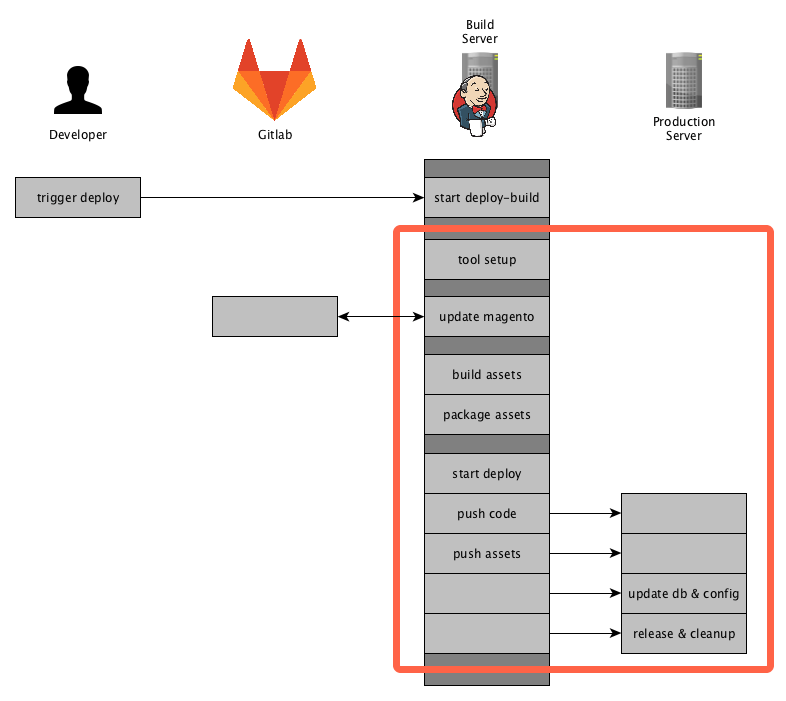
    If you read the previous post you will probably remember the diagrams showing the actions executed on the particular servers. I used one of those to mark the areas which will be provided by the MageDeploy2 setup.

    Now let’s go into details on how those phases and steps are implemented and what you need to get started with a PUSH deployment for Magento2 yourself.

    About MageDeploy2

    MageDeploy2 combine’s multiple technologies and open-source projects to provide the deployment setup.
    It basically is a set of tools, configurations files, some custom tasks for Robo and Deployer, all tailored to fit the needs of deploying a Magento2 project.

    For those new to Robo and Deployer:

    • Robo is a task runner that allows you to write fully customizable tasks in common OOP PHP style http://robo.li/
    • Deployer is Deployment tool for php, which follows a approach similar to capistrano https://deployer.org/

    I will not go into to much detail on how those tools work, you can get that from their designated websites and documentation.

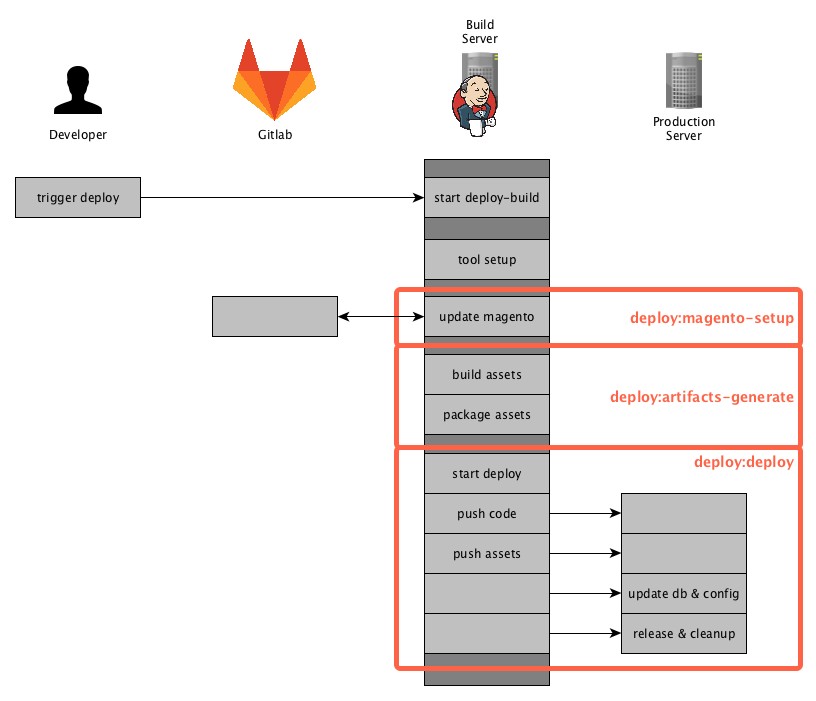
    MageDeploy2 can be divided into 3 phases that can each be triggered separately.

    • magento-setup (preparing a local magento-setup)
    • artifacts-generate (generating the assets and packaging them)
    • deploy (release to production environment)

    Those phases are implemented as commands in the RoboFile.

    MageDeploy2 is divided into different packages that are installed when installing through composer.

    • mwltr/robo-deployer : contains Robo-Tasks for deployer
    • mwltr/robo-magento2 : contains Magento2 specific Robot-Tasks

    Those Robo-Tasks are not a full set of all possible commands and options but currently offer the commands and modifiers needed in deployment scenario. They are decoupled and can be re-used in other projects.

    As far as the deployer setup is concerned, MageDeploy2 uses n98/n98-deployer to include deployer configurations and tasks, them being:

    • set of Magento2 specific tasks
    • Magento2 Default Recipe
    • RoleManager for servers
    • optimized deployer standard tasks

    Requirements

    As I mentioned earlier, Magento2 Deployment Setup is using Robo to control the local setup and the overall deployment process. To achieve the actual deployment to the distinct environment it comes with a pre-configured Deployer setup. Please note that using Deployer is not mandatory, you can use whatever tool you like.

    It also expects that you have a git repository available, where you have commited your Magento2 composer.json file in either the root or in a sub-directory. Right now we are only supporting git but it should not be that big of a problem to connect to another VCS.
    Finally you need to have configured the access to the Magento composer repository for your current user.

    Create a new Deployment

    To Create a new deployment setup just run the following command.

    composer create-project mwltr/magedeploy2-base <dir>

    Note: Robo needs to be installed using composer, otherwise the usage of custom Tasks is not available. See the Robo Documentation Including Additional Tasks

    Configuration

    After the Installation you have to edit the magedeploy2.php and the deploy.php file to suit your needs. MageDeploy2 assumes you have a git repository containing the magento composer.json. Furthermore your local build environment can clone said repository and download the Magento packages using composer.

    MageDeploy2 Configuration

    To configure the MageDeploy2 use the following command:

    ./vendor/bin/robo config:init

    It will guide you throught the most important configuration options. Don’t worry you can edit the magedeploy2.php later-on.

    Next, run

    ./vendor/bin/robo validate

    to validate your build environment is setup.

    Setup local build environment

    If you are done with the configuration in magedeploy2.php, you can see if your build environment can be setup. To do so run this command:

    ./vendor/bin/robo deploy:magento-setup develop

    You can use a different branch or tag depending on your git repository setup.

    After the magento-setup has run successfully, you can now generate the assets by running the command:

    ./vendor/bin/robo deploy:artifacts-generate

    After this command is complete you should see the packages beneath shop.

    At this point we are sure that the local build setup is working and we can now continue with releasing our project.

    Deployer Configuration

    To evaluate we will create a local deployment target. To do so copy the local.php.dist by runing

    cp config/local.php.dist config/local.php

    and set the config values according to your local deploy target.

    Check the configuration in deploy.php and adjust it to your requirements. The default configurations and tasks are defined in \N98\Deployer\Recipe\Magento2Recipe. You can also have a look at all the configurations available in the Deployer Documentation

    Setting up deploy directory tree

    After you are done with setting the configuration, you can now initialize the directory tree of the deploy target run

    ./vendor/bin/dep deploy:prepare local

    This will create the required directories on your local deploy target.

    Setting up deploy target (optional)

    If you want to set up your deploy target as well you can use the command

    ./vendor/bin/dep server:setup local

    It will make an initial deployment to push your code to the deploy target.

    When this is done navigate to your local deploy_path and run the magento install command to setup the database. This might look something like this:

    cd <deploy_path>
    php bin/magento setup:install --db-host=127.0.0.1 --db-name=magedeploy2_dev_test_1_server --db-user=root --admin-email=admin@mwltr.de 
    --admin-firstname=Admin --admin-lastname=Admin --admin-password=admin123 --admin-user=admin 
    --backend-frontname=admin --base-url=http://magedeploy2_dev --base-url-secure=https://magedeploy2_dev 
    --currency=EUR --language=en_US --session-save=files --timezone=Europe/Berlin --use-rewrites=1

    Now we have Magento database and configuration on our deploy target and are ready to continue with the final step.

    Deploying the project

    At this point, you have setup the build environment and target environment and can finally start with the actual deployment. You can do so by running:

    ./vendor/bin/dep deploy local

    Congrats you have successfully setup your deployment pipeline and run the first deployment!

    Commands

    If you went through the tutorial above, you may have already used most of them.
    A full list of commands is available in the github repository here:
    https://github.com/mwr/magedeploy2-base#commands
    The following diagram shows the commands responsibility within the deployment pipeline.

    deploy:magento-setup

    Runs all tasks in the stage magento-setup. It will setup or update a local Magento instance by pulling the source-code from git, installing composer dependencies and installing or updating a local database.

    deploy:artifacts-generate

    Runs the Magento di:compile and setup:static-content-deploy commands to generate the assets. It is using your configuration from the magedeploy2.php.

    After generating those assets it will create packages, again according to your configuration.

    deploy:deploy

    This command will invoke deployer to release your project and push the prepared artifacts to the server.

    deploy

    Triggers the deployment with all it’s stages and can be considered to run deploy:magento-setup, deploy:artifacts-generate and deploy:deploy internally.

    Customization

    MageDeploy2 was designed to be highly customizable to suite your needs. Here are some areas that are easy to adjust:

    • Add or overwrite Robo-Tasks
    • Add or overwrite existing or additional configuration to MageDeploy2
    • Customize Deployer but still have the basic set of tasks available
    • Exchange deployer with a different tool

    The go into details here would exceed the purpose of this introduction. We may go into details in this area in a later post though.

    Final Words

    This is it, I hope you like the tool and it will be helpful setting up a PUSH deployment of your own.
    And as always let me know your thoughts and feedback in the comments below or contact me directly.