Blog

  • Workaround for Magento 2 Issue #5418 – Product Grid does not work after Import

    Workaround for Magento 2 Issue #5418 – Product Grid does not work after Import

    The Magento 2 Importer is a simple way to import and update Product Data and many more. Since July 2016, an Import will throw an Exception at the Product Grid. Today, I added a small script as a Workaround, which I want to share.

    It is actually simple and based on the Yonn-Trimoreau‘s SQL Query. I setup a bashscript, which enters the working dir and executes the query via n98-magerun2. After that, I added a CronJob to call the Script every Minute(In case someone starts the Import manually).

    This is the Bash Script:

    #!/usr/bin/env bash
    cd to/your/working/dir/ && /usr/local/bin/n98-magerun2.phar db:query 'DELETE FROM cataloginventory_stock_item WHERE product_id IN ( SELECT * FROM( SELECT product_id FROM cataloginventory_stock_item GROUP BY product_id HAVING COUNT( product_id ) >1 )tblTMP WHERE website_id = 1 )'

    My CronJob Configuration looks like this:

    # Job 1 by David Lambauer <d.lambauer@netz98.de>
    # This is a little Workaround for the following Magneto 2 Issue:
    # https://github.com/magento/magento2/issues/5418
    # This should be removed after the fix was applied.
    * * * * * www-data /path/to/your/bash/script/magento2-issue-workarround.sh

    It is pretty dirty, but it’ll work until Magento applied a Fix.


  • A framework to prevent invalid stuff in your GIT repository

    A framework to prevent invalid stuff in your GIT repository

    The following blog post describes a a framework for managing and maintaining multi-language pre-commit hooks. The described methods adding a comprehensive quality gate to your publishing workflow. If you are using SVN instead of GIT you can skip this blog post 😛

    The framework was designed by Yelp three years ago. It brings many pre defined checks designed for a generated GIT pre-commit hook. Most of the checks are made to to run against python files. This is not a blocker for PHP developers. Fortunately the framework can be extended by scripts. It’s also possible to share the checks in extra remote repositories. So you can build a pre-commit kit for your purposes. The standard repository comes with some nice checks for i.e. XML or YAML files. Other stuff like checking for broken symlinks or “merge residues”. A complete list and a documentation can be found on project website.

    Installation

    The installation is simple. It can be done by brew or the python installer pip. Most Linux distributions come with pip already installed. Mac users can install python with pip or use brew.

    On Mac:

    brew install pre-commit

    or with Python PIP:

    pip install pre-commit
    

    After the installation we should have a binary “pre-commit”.

    Config

    For configuration a YAML format is used. All the configs are validated by pre-commit. That’s a good thing. If you have a mistake in your config file it will print out a long list of syntax rules. Config entries start with a „repo“ which must be a git repository URL. The example shows the external repository provided by hootsuite.

    - repo: git@github.com:hootsuite/pre-commit-php.git
       sha: 1.2.0
       hooks:
       - id: php-lint
       - id: php-unit
       - id: php-cs-fixer
         files: \.(php)$
    

    Hooks can also be defined locally. Add the pseudo repository name „local“:

    - repo: local
      hooks:
        - id: "run-unit-tests"
          name: "Run Unit-Tests"
          entry: "./vendor/bin/phpunit"
          language: "script"
          always_run: true
          files: \.(php)$

    Every rule must have an IDE. That’s important if you share a rule in your own repository. If the rule is provided by an external repository it must be defined in a „hooks.yaml“ file. To use the hooks in your lokal project a .pre-commit-config.yaml file must be created.

    Install the hooks

    The installation of the hooks in your config can be done by running pre-commit install. That’s all we need to do. After that all our commits are checked by the installed hooks.
    It’s also possible to update the YAML file versions like „composer update“ with pre-commit autoupdate. This fetches the newest version of the commits from remote repositories.

    Test the hooks

    Simply run pre-commit run --all-files to test all hooks against the whole local working copy.

    Commit your code

    Congratulations! You have now a QA step between you and your CI server. If you commit some code the automatic checks should run and prevent bigger issues. To secure the complete project it’s necessary to setup the same checks on your continuous integration server. If you don’t have a CI-Server like Jenkins, Gitlab etc. and working for your own this setup is good enough.

    git commit -a

    Example config for a PHP library

    This config provides us the following checks:

    • Validate composer.json file with composer
    • Prevent large files in commits like a database dump
    • Check for valid JSON and XML files
    • Check if merge conflict entries are not resolved
    • Check if a file has a wrong BOM
    • Run php-cs-fixer and fix code against a .php_cs file.

    Example .pre-commit-config.yaml:

    -   repo: local
        hooks:
        -   id: validate-composer-json
            name: Validate Composer JSON
            entry: "composer validate --strict"
            language: system
            files: composer\.json
    -   repo: git://github.com/pre-commit/pre-commit-hooks
        sha: 5da199bb8d60f764c0f77a20b0a1dc3a7640bcdd
        hooks:
        -   id: check-added-large-files
        -   id: php-unit
        -   id: check-json
        -   id: check-xml
        -   id: check-merge-conflict
        -   id: check-byte-order-marker
    -   repo: git://github.com/hootsuite/pre-commit-php.git
        sha: 1.2.0
        hooks:
        -   id: php-cs-fixer
            args:
            - -q
            - --config-file=.php_cs
        -   id: php-lint-all

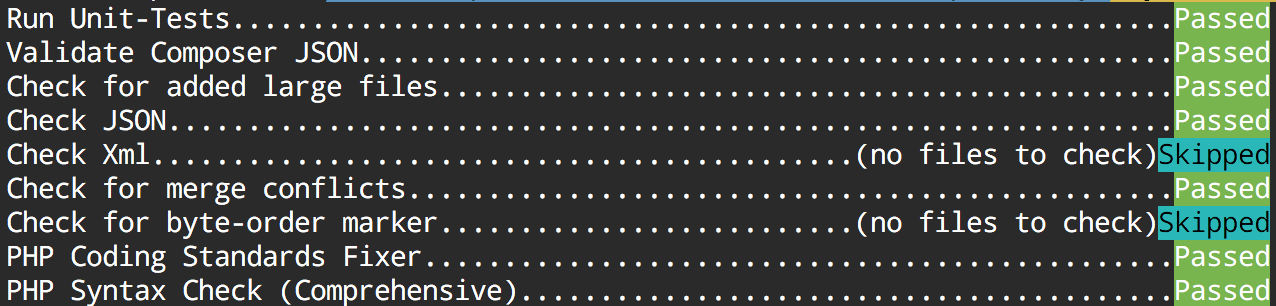
    Output:

    If you find the concept good, we would be happy if you leave a comment.

    Have fun!


    PS: Thanks to David Lambauer for discovering the framework at netz98.

  • Fixing issues after changing product attribute type from varchar to text

    Fixing issues after changing product attribute type from varchar to text

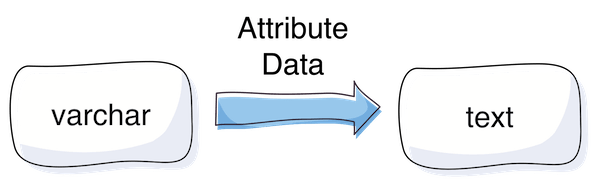
    In some cases there is a need to change the backend type of a catalog product attribute from varchar to text. The purpose of this change is to get more than 255 characters space for a string value.

    In this article I will cover the situation when problems occur after changing the backend type of an attribute.

    The Problem

    If the backend type of an attribute is changed, e.g. via install/upgrade script, Magento does not automatically copy and clean up old values. The consequence of that is that there are rudiments in the EAV value tables which cause some side effects. One of the side effects I was facing is editing a product which had a value for the affected attribute before the backend type change (in admin area). No values are displayed and there is no possibility to set a new value.

    So what to do if the change already happened and there is a mix between old value table rudiments and new value table entries?

    The Solution

    One possible solution to solve the issue are the following SQL Statements, here is an example for changing from varchar to text (you need to find out the id of the attribute from the eav_attribute table – here {attribute_id}):

    1. Copy the “value” from varchar table to text table for the case an entry for a product entity exists in both tables, but only if the “value” in the text table is null:

    UPDATE catalog_product_entity_varchar, catalog_product_entity_text 
    SET catalog_product_entity_text.value = catalog_product_entity_varchar.value 
    WHERE catalog_product_entity_varchar.attribute_id = catalog_product_entity_text.attribute_id 
    AND catalog_product_entity_varchar.entity_id = catalog_product_entity_text.entity_id 
    AND catalog_product_entity_text.store_id = catalog_product_entity_varchar.store_id 
    AND catalog_product_entity_text.entity_type_id = catalog_product_entity_varchar.entity_type_id 
    AND catalog_product_entity_text.value is null
    AND catalog_product_entity_varchar.attribute_id = {attribute_id};

     2. Copy entries which do not exist in text value table, but exist in the varchar table

    INSERT IGNORE INTO catalog_product_entity_text 
    (entity_type_id, store_id, attribute_id, entity_id, value)
    select entity_type_id, store_id, attribute_id, entity_id, value 
    from catalog_product_entity_varchar 
    where catalog_product_entity_varchar.attribute_id = {attribute_id} 
    and catalog_product_entity_varchar.value is not null;

    3. Delete entries from the varchar table

    DELETE FROM catalog_product_entity_varchar where attribute_id = {attribute_id};

    Important note

    Please verify the SQL, whether it is suitable for your purpose. Best practice is also to test it in a local / staging system and to back up the live database before applying the SQL on production. The solution is not perfect: I myself faced the issue, that the enterprise indexer cronjob took about 4h after applying the SQL, which blocked other cronjobs to be executed (about 50K products in DB). Possible way to avoid this is to separate “malways” (enterprise indexer) and “mdefault” cronjobs.

    I hope this  can be helpful. Feel free to comment if you faced this issue too or if you have any additions or a better solution.

  • PSR-7 Standard  – Part 1  – Overview

    PSR-7 Standard – Part 1 – Overview

    This post is part of series:


    This is the first post of my new PSR-7 series. If you already use PSR-7 in your daily life as programmer you can skip the first part of this post.

    What is PSR-7?

    PSR-7 is a standard defined by the PHP-FIG. It don’t like to repeat the standard documents in my blog post. The idea is to give you some real world examples how you can use PSR-7 in your PHP projects. If you investigate the standard you can determine that it doesn’t contain any implementation.

    Like the other standard of the FIG it only defines PHP interfaces as contracts. The concrete title of the standard is HTTP message interfaces. And that’s all what it defines. It defines a convenient way to create and consume HTTP messages. A client sends a request and a server processes it. After processing it, the server sends a response back to the client.

    Nothing new? Yes, that is how any PHP server application works. But without PSR-7 every big framework or application implements it’s own way to handle requests and responses. Our dream is that we can share HTTP related source code between applications. The main goal is: interoperability.

    History

    Before any PSR standard we had standalone PHP applications. There were some basic PHP libraries to use. Most of the code was incompatible. With PSR-0 we got an autoload standard to connect all the PHP libraries.

    The PSR-7 is a standard to connect an application on HTTP level. The first draft for PSR-7 was submitted by Michael Dowling in 2014. Michael is the creator of Guzzle, a famous PHP HTTP client library. He submitted his idea. After that the group discussed the idea behind a standardized way to communicate with messages. Matthew Weier O’Phinney (the man behind Zend Framework) took over the work of Michael.

    In May 2015 we had an officially accepted PSR-7. After that the most big frameworks adopted the standard or created some bridge/adapter code to utilize the new standard.

    Overview

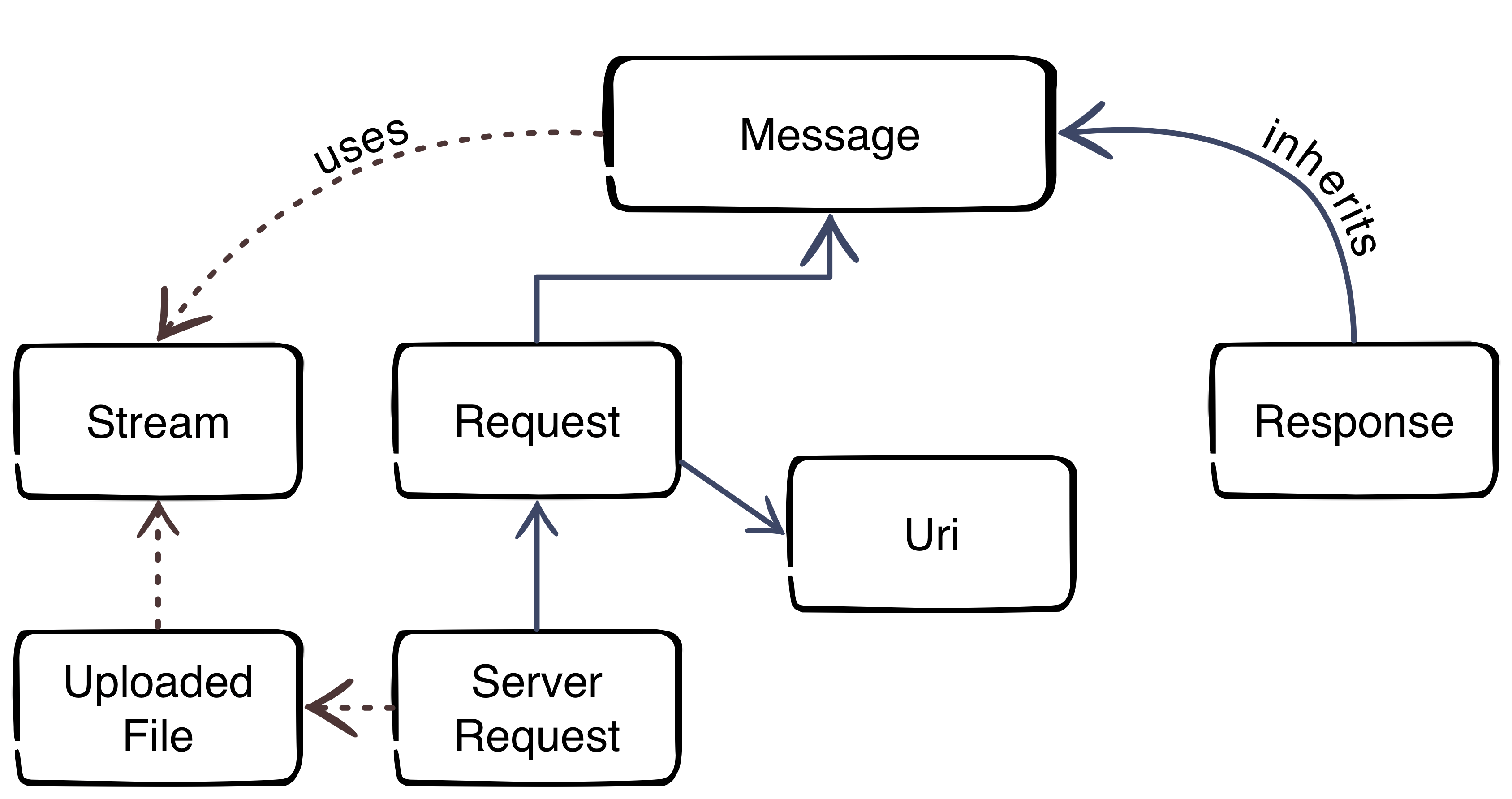
    Thanks to Beau Simensen


    The image gives us an overview about the PSR-7 interfaces. The blue color represents the inheritance. The message interface is the main interface of the standard. The request of a client and the response of the server inherit the message interface. That’s not surprising, because the message utilizes the HTTP message itself. The red dotted lines clarify the usage of other parts.

    Request-flow with PSR-7

    The main flow with PSR-7 is:

    1. Client creates an URI
    2. Client creates a request
    3. Client sends the request to server
    4. Server parses incoming request
    5. Server creates a response
    6. Server sends response to client
    7. Client receives the response

    This was the first part of the blog series. The next part will look more closely at the request and the URI.

  • Solving a 2006 MySQL error connection timeout in Magento1

    Solving a 2006 MySQL error connection timeout in Magento1

    In my recent task I was testing a web crawler script which uses Magento database information for the crawling requests. I have encountered the following error:

    Fatal error: Uncaught exception ‘PDOException’ with message ‘SQLSTATE[HY000]: General error: 2006 MySQL server has gone away’ in lib/Zend/Db/Statement/Pdo.php:228

    The Problem

    This error occured after around 45 minutes of script runtime.
    The script was written in a way that it was possible that there is no database interaction for a longer period.
    In consequence to that when the script reached a point where it was trying to save or fetch something from the database, the mysql connection ran into a timeout – unnoticed by the script.
    Thus resulting in the above mentioned MySQL error.

    mysql wait_timeout

    The variable controlling this timeout from MySQL is the wait_timeout system variable.

    Definition from MySQL Reference Manual :

    “The number of seconds the server waits for activity on a non-interactive connection before closing it.”

    As it turns out we have already had this situation in another project – thanks to the netz98 developers for the hint.

    The Solution

    The solution is to close the connection before using it – in case of long running and un-interrupted code part that does no database communication.

    We have added the following code snippet to our ResourceModel:

    /**
     * Initialize the ReadAdapter (force a re-connect)
     *
     * @param bool $useNewConnection
     * @return Varien_Db_Adapter_Pdo_Mysql
     */
    protected function _initReadAdapter($useNewConnection = false)
    {
        /** @var Varien_Db_Adapter_Pdo_Mysql $adapter */
        $adapter = $this->_getReadAdapter();
    
        /**
         * In some occasions we want to use a fresh connection to fetch table data
         * when crawling takes longer (between queries) than the configured mysql wait_timeout
         *
         */
        if ($useNewConnection === true) {
            $adapter->closeConnection();
        }
        return $adapter;
    }

    With this method the Connection within the Adapter can be closed. When it is closed the connection will be re-initialized automatically with the next Database Interaction that is triggered by our code. To do so we introduced the parameter $useNewConncetion which enforces this behaviour.

    Each time we have reached a point in our script where it could be possible that the connection hit the wait_timeout we just call this method with useNewConnection set to true.

    I hope this article is helpful for you, in case you face the same situation. Feel free to comment if you faced this issue too or if you have any additions.

    Update: Keep alive implementation by Ivan Chepurnyi (@IvanChepurnyi)

        /**
         * Zend db adapter validation, in order to get rid of possible server gone away
         *
         * @param Zend_Db_Adapter_Abstract $adapter
         * @return bool
         */
        protected function _validateConnection(Zend_Db_Adapter_Abstract $adapter)
        {
            try {
                // Execute simple non heavy query
                return $adapter->fetchOne('SELECT 1') === '1';
            } catch (Zend_Db_Statement_Exception $e) {
                $adapter->closeConnection();
            }
    
            return $adapter->getConnection() !== null;
        }


  • Deploying Magento2 – Jenkins Build-Pipeline [2/4]

    Deploying Magento2 – Jenkins Build-Pipeline [2/4]

    This post is part of series:

    Recap

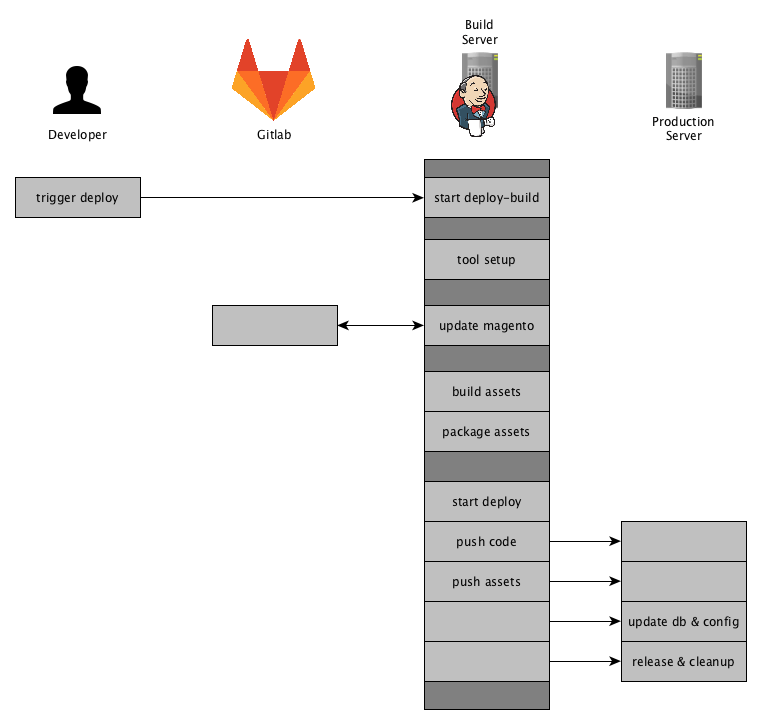
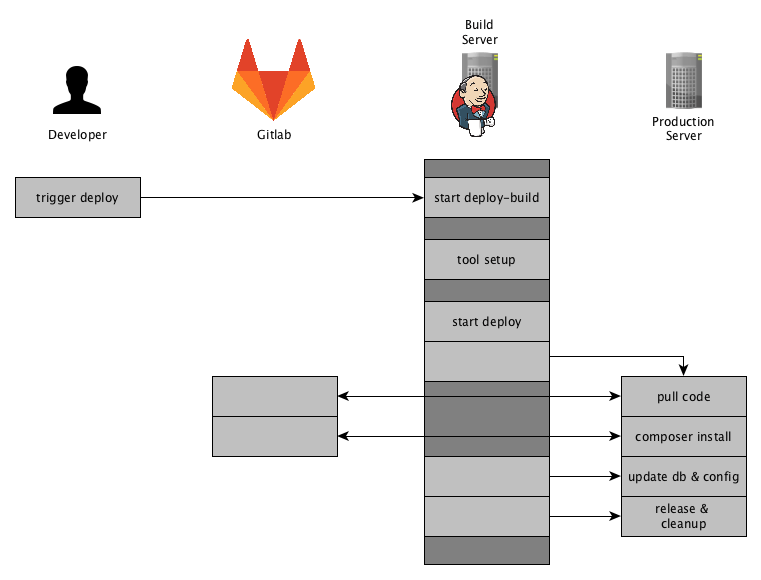
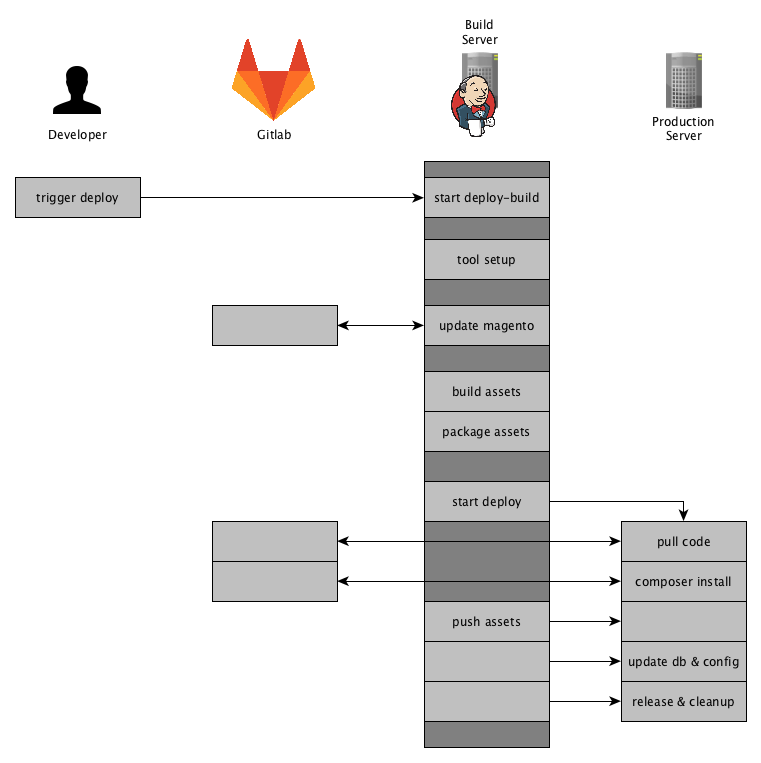
    In the post Deploying Magento2 & History / Overview [1/4] we showed an overview of our deployment for Magento2 and this post will go into more detail on what is happing on the Build-Server and how it is done. So to get you up to speed, this is the overview of our process and what this post will cover:

    Jenkins Build-Pipeline

    Our Build Server is basically a Jenkins running on a dedicated server. The Jenkins Server is the main actor in the whole deployment process.
    It will control the specific phases of the deployment and provide an overview and a detailed monitoring of the output of each phase.

    We are using the Jenkins Build Pipeline feature to organize and control our deployment.
    The Magento2 deployment is split up into the following stages:

    • Tool Setup – ensuring all tools are installed
    • Magento Setup – updating the source-code and update composer dependencies
    • Asset Generation – generating the assets in pub/static var/di var/generation and providing them as packages
    • Deployment – delivering the new release to the production server

    The Jenkinsfile

    There are different ways to create a Jenkins Build-Pipeline, one is to create a Jenkinsfile that defines the stages and the commands to run. We are using just that approach and put that Jenkinsfile into a git repository separate from our magento2 repository. Though this is an approach we have been following for years now, I still think it is best to have your deployment separate from the actual project. But as so often that depends on the individual needs.
    We will add some more dependencies to this repository later.

    Next you will see a skeleton for the Jenkinsfile we are using. I left out the details for the stages for now and will show those further down the post.

    node {
        // ENV variables
        env.PWD = pwd()
        env.STAGE = STAGE
        env.TAG = TAG
        env.REINSTALL_PROJECT = REINSTALL_PROJECT
        env.DELETE_VENDOR = DELETE_VENDOR
        env.GENERATE_ASSETS = GENERATE_ASSETS
        env.DEPLOY = DEPLOY
    
        try {
            // Update Deployment
            checkout scm
    
            stage 'Tool Setup'
            // Setup tools here
    
            stage 'Magento Setup'
            // Setup and update Magento
            
            stage 'Asset Generation'
            if (GENERATE_ASSETS == 'true') {
                // Generate and package assets
            }
    
            stage 'Deployment'
            if (DEPLOY == 'true') {
                // Trigger deployment and start release
            }
    
        } catch (err) {
            currentBuild.result = 'FAILURE'
            throw err
        }
    }
    

    The stage keyword defines a new stage and takes a string as a parameter. You can see the stages I mentioned earlier defined here. The update of our deployment itself is not included as a stage.
    We are using multiple ENV variables that are defined when starting the build. By default DEPLOY and GENERATE_ASSETS are set to true , but we could choose to leave out on of them. So in case there was an error during the Deployment we don’t need to re-generate all the assets.
    The ENV variables REINSTALL_PROJECT and DELETE_VENDOR are used within the stage Magento Setup.

    The ENV variable STAGE is used to identify the server environment we are deploying to, like staging or production. This variable is to be selected when starting the Build and can be individualized to the needs in the project at hand.
    The ENV variable TAG is defining the git branch or git tag where are deploying with this build. It is used later on in the process multiple times.

    Stage Tool Setup

    stage 'Tool Setup'
    sh "${phpBin} -v"
    // Composer deps like deployer
    sh "composer.phar install"
    // Phing
    if (!fileExists('phing-latest.phar')) {
        sh "curl -sS -O https://www.phing.info/get/phing-latest.phar -o ${phingBin}"
    }
    sh "${phingCall} -v"
    sh "printenv"
    

    The first stage “Tool Setup” will install or update the tools needed through out the deployment.
    As you can see we are using composer here to pull in our tools like for example deployer.
    Also we are using phing for some parts during the deployment process, so we are ensuring that the latest phing version is present.

    Stage Magento Setup

    stage 'Magento Setup'
    if (!fileExists('shop')) {
        sh "git clone ${magentoGitUrl} shop"
    } else {
        dir('shop') {
            sh "git fetch origin"
            sh "git checkout -f ${TAG}"
            sh "git reset --hard origin/${TAG}"
        }
    }
    dir('shop') {
        sh "${phingCall} jenkins:flush-all"
        sh "${phingCall} jenkins:setup-project"
        sh "${phingCall} jenkins:flush-all"
    }

    In this stage we are updating the Magento Setup the Build needs to create the assests.
    It basically consists of two steps:

    • Setup or Update the Source-Code of the Magento Shop
    • Setup or Update the Magento-Database

    We are cloning the repository containing the customer project in the directory shop. If we have already cloned the repository we will just update to the tag or branch that is to be deployed.

    Next-up is the project setup using the phing-call jenkins:setup-project. This phing-call is defined by the phing scripts inside our shop repository.
    This call will

    • install the magento composer dependencies,
    • re-install the project therefore deleting the app/etc/env.php, (using REINSTALL_PROJECT )
    • create the database if necessary
    • run setup:upgrade

    Up until recently a database was necessary to create the assests. As far as I know, there is plan to remove the requirement of having a database during the assets creation.

    The phing tasks called in this stage are re-used from our Continous Build Jobs that we run on develop, master, feature and release branches for all of our projects.
    Those Build Jobs are automatically running the Unit and Integration Tests, generating the documentation, Running Code Analyzers and summarizing all this information in a nice little Dashboard.
    Maybe we will have a blog-post about that too. Let’s move on to the next stage.

    Stage Asset Generation

    stage 'Asset Generation'
    dir('shop') {
        if (GENERATE_ASSETS == 'true') {
            sh "${phingCall} deploy:switch-to-production-mode"
            sh "${phingCall} deploy:compile"
            sh "${phingCall} deploy:static-content"
            sh "bash bin/build_artifacts_compress.sh"
    
            archiveArtifacts 'config.tar.gz'
            archiveArtifacts 'var_di.tar.gz'
            archiveArtifacts 'var_generation.tar.gz'
            archiveArtifacts 'pub_static.tar.gz'
            archiveArtifacts 'shop.tar.gz'
        }
    }

    During this stage the deploy job will compile all assets needed for running Magento2 in production-mode.
    Therefore we ensure we are in production-mode and basically call php bin/magento setup:di:compile  and php bin/magento setup:static-content:deploy .
    Those phing-calls you see above are executing the following commands:

    php bin/magento deploy:mode:set --skip-compilation production
    
    rm -Rf var/di
    rm -Rf var/generation
    
    php bin/magento setup:di:compile
    
    bin/magento setup:static-content:deploy --theme=NAMESPACE/base --theme=Magento/backend --language=en_US --language=de_DE
    

    The Bash-Script bin/build_artifacts_compress.sh  creates 5 tar files for

    • shop – containing the Magento Source-Code
    • pub_static – containing the contents of pub/static directory
    • var_generation – containing the contents of var/generation directory
    • var_di – containing the contents of var/di directory
    • config – containing config yaml-files that can be imported using config:data:import

    The config:data:import  command is provided by the Semaio_ConfigImportExport which we are using to manage our systems configuration through.  https://github.com/semaio/Magento2-ConfigImportExport
    After the artifacts have been created, we use the Jenkins archiveArtifacts command to archive the latest artifacts for this build and make them available per HTTP-link in a consistent directory.

    At the moment we are thinking about just creating one artifact instead of 5 and using that from here on. This will have some more advantages that we will cover in our post: “Future Prospect (cloud deployment, artifacts)”

    Now we have prepared all the artifacts we need and are ready to create the new release on our servers and publish it. So now for the final stage “Deployment”.

    Stage Deployment

    stage 'Deployment'
    if (DEPLOY == 'true') {
        sshagent (credentials: [jenkinsSshCredentialId]) {
            sh "./dep deploy --tag=${TAG} ${STAGE}"
        }
    }

    This Stage has probably the shortest content as far as the code in the Jenkinsfile is concerned. We are just triggering the Deployer while passing the STAGE and the TAG to it.

    Deployer is a Deployment Tool for php and is more or less based upon capistrano and following the same concepts applied in capistrano.

    We have defined quite some Magento2 related Deployer Tasks and created some adjustments to the core-tasks fixing bugs or adjusting them to our needs.

    The details what we have done and on how we are using deployer to release the code and pushing the assets to the server environment will be covered in the upcoming post.

    The Stage View of the Pipeline

    At this point we have defined the Build-Pipeline and are ready to execute it.
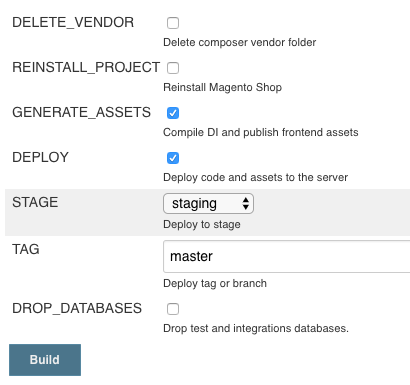
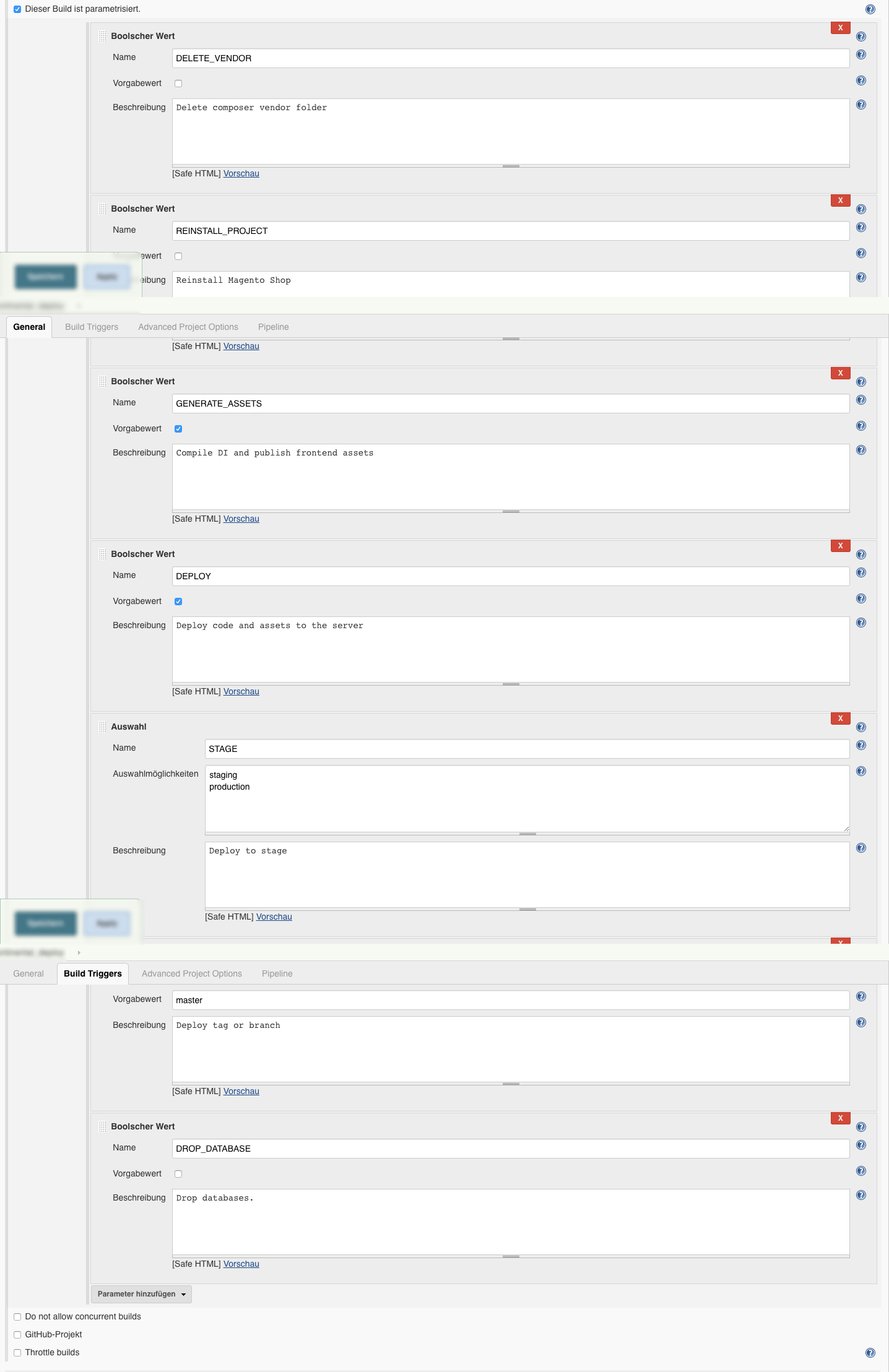
    We do so by configuring the parameters as needed in this form:

    You can see the Environment Variables used in the above mentioned code samples. The image shows the default form with pre-selected variables.
    In some cases it is necessary to delete the vendor directory completely or to drop the jenkins database.

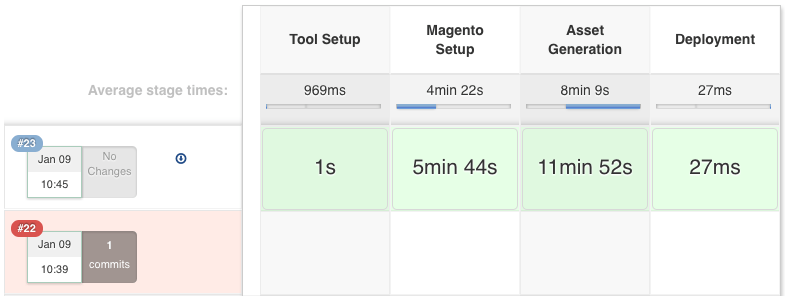
    When running the introduced Build-Pipeline, you are presented with an informative stage view that shows the stages and their completion.
    We can evaluate how our Deployment is progressing and get an estimate how long it will take to finish the stage(s).

    The Jenkins Job Configuration

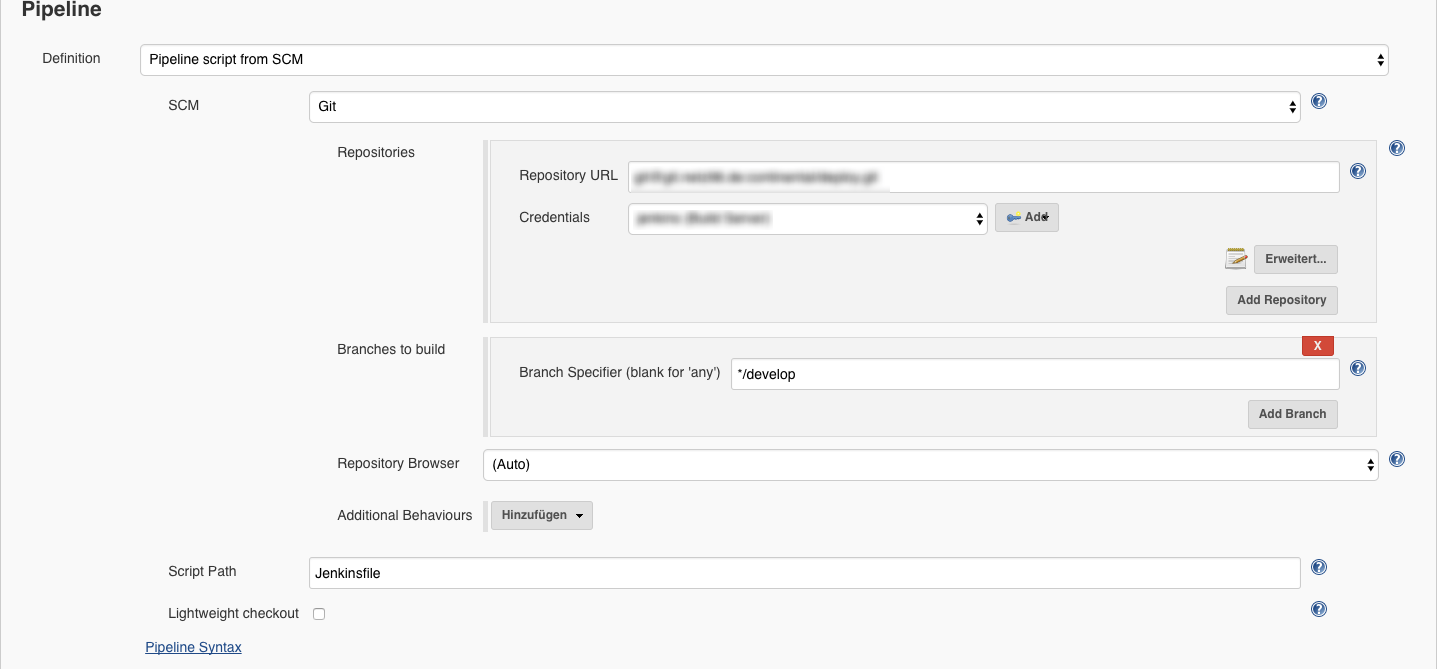
    We are creating our projects based on the pipeline project.
    Then the parameters are added and the git repository url and that’s basically it.

    Here are some screenshots:

    Repository Configuration
    Build Job Parameters


    Summary

    This is the end of the introduction to our Build-Pipeline Setup for Deployments. The next post will cover details to our php-deployer setup.

    I really like the automated and centralized way of Deploying our Magento Shops and of course the resulting advantages. Whenever somethings automated you don’t need to explicitly know or remember all the details of the deployment. It just takes so much of your mind and you can focus on more important tasks.

    Well, that’s it for this post. I hope you enjoyed it and you find it informative. As always, if there any questions or if you’d like to know more about specific details, please feel free to comment or ask us directly on twitter or any other social plattform.

    UPDATE 23-FEB-2017

    Add Screenshot of the Build Form.

    UPDATE 29-MAR-2017

    Add Screenshot of the Build Configuration Parameters and Pipeline

  • Deploying Magento2 – History & Overview [1/4]

    Quite recently we have updated the deployment of our Magento2 projects to a more flexible and reusable way.
    Originally I wanted to create one post to present you our deployment setup, the systems involved, the workflow & process and some code that might be interesting.
    While describing this subject I decided to create a series of posts to cover those parts as it was just getting to extensive for one post.

    I am planing to cover the following topics in separate posts:


    Then let’s get started with a brief introduction of our former setup for Magento1 and Magento2. You might have a similar solution to this one.

    History Magento 1

    When we were starting with our first Magento 2 project in June 2016, we ported the workflow we had established for our Magento 1 projects.

    Our Magento 1 projects are deployed using capistrano and are using a pull approach, where the server fetches the Magento source-code and the composer dependencies using git and composer.
    This approach has some draw backs as we have to have tools installed (git, composer) and we needed a transfer channel back to our gitlab server.

    First Magento 2 Deployment

    At first, we followed the same approach with the Magento 2 projects.
    We applied some minor adjustments to the process, as Magento 2 has some requirement in terms of pre-compilation.


    The solution was to generate the static assets and the di on the build server and pushing that to the production server during the deployment.
    You should not generate those assets on the production server. The actions performed on the production server should be kept to a minimum, to keep the load down and when thinking about a setup with multiple nodes it just does not seem right to this kind of task on each server.
    We ended up with a mixture of a PULL and PUSH deployment, the source-code being pulled by git / composer and the assets being pushed.
    We still had the drawbacks from our Magento 1 deployment, as we basically just extended that to fit the needs of the Magento 2 compilation.

    Current Magento 2 Deployment

    Our goal was to create a pure PUSH deployment where the production server does not need direct access to our git repositories.

    So here is an Overview of how our current deployment for Magento 2 projects works:

    Jenkins will fetch the source-code using git and composer and update its Magento 2 instance database. It will then generate & package the assets and finally pushes the code and the assests to production server.
    To achieve those steps we have setup a Jenkins Pipeline that we will have a look at next.

    Summary

    This setup comes in handy when any callback (e.g. PULL) is prohibited by a firewall.
    Or even a more restrictive environment where a VPN-Tunnel is to be opened which prevents any other network connections to other system except the server.
    We were faced with that kind of situations recently, but with using the above mentioned approach we had little effort in terms of adjusting our deployment.

    Furthermore following this approach we are flexible where we push to and it is easy to extend and reusable.
    In the post “Future Prospect (cloud deployment, artifacts)” we will shed some light on our future plans on how to extend that deployment for different hosting environments.

    This was a brief overview of how we got to our current Magento2 Deployment and how it works in general.
    The next posts will be about the tool-stack we use and we will share some insights with code samples.

    If you have any feedback or questions, as always, feel free to leave a comment or contact us directly.

  • How to add alternative HTTP headers to Magento 2?

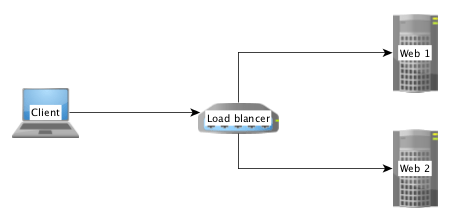
    If you have more than one frontend server running in your business, it’s needed to load balance the traffic between the nodes. In this case we have a new instance between the browser and the web-server.

    Often it’s a system like HAProxy or Varnish.

    Simple load balancer/proxy setup

    If the load balancer or proxy receives a request from a browser, it forwards it to backend server in the internal network. The IP address of the client is than added to a forward header which contains the IP address of a forward chain.

    Example:

    X-Forwarded-For: client, proxy1, proxy2

    In some situation i.e. for GEO-IP checks, you need the real IP address of a client. If you don’t configure Magento the remote address is always 127.0.0.1.

    That’s not what we want. We need the first part of the comma separated list of the IP chain. Magento offers us a mechanism to solve this issue.

    Remote Address

    The key to solve the issue is the class Magento\Framework\HTTP\PhpEnvironment\RemoteAddress which is provided by the Magento 2 framework.

    In Magento 2 it’s prohibited to call the $_SERVER['REMOTE_ADD'] directly. The RemoteAddress class is a wrapper to deal with the remote address.

    The correct way to get the remote address is this:
    use Magento\Framework\HTTP\PhpEnvironment\RemoteAddress;

    use Magento\Framework\HTTP\PhpEnvironment\RemoteAddress;
    
    class MyClass
    {
        /**
         * @var RemoteAddress
         */
        private $remoteAddress;
    
        public function __construct(RemoteAddress $remoteAddress)
        {
            $this->remoteAddress = $remoteAddress;
        }
    
        public function doSomething()
        {
            $ipAddressOfTheClient = $this->remoteAddress->getRemoteAddress();
        }
    }
    

    Configuration

    It’s possible to inject a list of alternative headers to the RemoteAddress class by Dependency Injection. This config isn’t related to any module. It’s a special config for a production server setup.

    It’s important to know that Magento 2 will load any „di.xml“ file from any subfolder of the „app/etc“ folder!

    With this information we can create a subfolder like „app/etc/myproject/di.xml“ with the following content:

    <?xml version="1.0"?>
    <config xmlns:xsi="http://www.w3.org/2001/XMLSchema-instance"
            xsi:noNamespaceSchemaLocation="urn:magento:framework:ObjectManager/etc/config.xsd">
    
        <type name="Magento\Framework\HTTP\PhpEnvironment\RemoteAddress">
            <arguments>
                <argument name="alternativeHeaders" xsi:type="array">
                    <item name="x-forwarded-for" xsi:type="string">HTTP_X_FORWARDED_FOR</item>
                </argument>
            </arguments>
        </type>
    </config>


    After that Magento will look into the given HTTP header „X-Forwarded-For“. The name of the header is normalized by PHP.
    X-Forwarded-For is available as $_SERVER['HTTP_XFORWARDED_FOR'].

    It’s possible to add more than one header to alternative header list.

    That’s it. Have fun with Magento 2. 🙂

  • How to Create a Category Image Attribute in Magento 2

    Creating a custom Category Attribute with an image upload is quite common feature requirement in our shops.
    So this blog-post will be about the steps you have to take to create a custom category attribute with an image upload in Magento 2.
    The post turned out to be quite long, but I wanted to provide a complete description of all steps necessary. So stay with us if your interested 🙂

    Our Module is called `Dev98_CategoryAttributes` and the image attribute will be called `dev98_icon`.

    Creating the Attribute

    In our projects we are creating the attributes using Install- or UpdateData classes, except when the attributes are explicitly managed manually.
    So to create the`dev98_icon` we might write something like this.

    $this->eavSetup->addAttribute(
        CategoryModel::ENTITY,
        'dev98_icon',
        [
            'type' => 'varchar',
            'label' => 'dev98 Icon',
            'input' => 'image',
            'sort_order' => 333,
            'source' => '',
            'global' => 2,
            'visible' => true,
            'required' => false,
            'user_defined' => false,
            'default' => null,
        ]
    );

    After running the setup:upgrade command to upgrade the application database and schema, we have created the attribute and should be able to store information for this attribute.

    Extending the Category Form

    To get an file upload for our attribute we need to extend the ui-component for the category form.
    The category form is defined in a category_form.xml, which can be extend by adding the following code to the file
    `Dev98/CategoryAttributes/view/adminhtml/ui_component/category_form.xml`

    <?xml version="1.0" ?>
    <!--
    /**
     * @copyright Copyright (c) 1999-2016 netz98 new media GmbH (http://www.netz98.de)
     *
     * @see PROJECT_LICENSE.txt
     */
    -->
    <form xmlns:xsi="http://www.w3.org/2001/XMLSchema-instance"
          xsi:noNamespaceSchemaLocation="urn:magento:module:Magento_Ui:etc/ui_configuration.xsd">
        <fieldset name="dev98_attributes">
            <argument name="data" xsi:type="array">
                <item name="config" xsi:type="array">
                    <item name="collapsible" xsi:type="boolean">true</item>
                    <item name="label" xsi:type="string" translate="true">dev98 custom attributes</item>
                    <item name="sortOrder" xsi:type="number">100</item>
                </item>
            </argument>
            <field name="dev98_icon">
                <argument name="data" xsi:type="array">
                    <item name="config" xsi:type="array">
                        <item name="dataType" xsi:type="string">string</item>
                        <item name="source" xsi:type="string">category</item>
                        <item name="label" xsi:type="string" translate="true">dev98 icon</item>
                        <item name="visible" xsi:type="boolean">true</item>
                        <item name="formElement" xsi:type="string">fileUploader</item>
                        <item name="elementTmpl" xsi:type="string">ui/form/element/uploader/uploader</item>
                        <item name="previewTmpl" xsi:type="string">Magento_Catalog/image-preview</item>
                        <item name="required" xsi:type="boolean">false</item>
                        <item name="uploaderConfig" xsi:type="array">
                            <item name="url" xsi:type="url"
                                  path="dev98_category_attributes/category/categoryImageUpload/attribute_code/dev98_icon"/>
                        </item>
                        <item name="scopeLabel" xsi:type="string">[WEBSITE]</item>
                    </item>
                </argument>
            </field>
        </fieldset>
    </form>

    The above code block defines a new fieldset `dev98_attributes` which will contain one field`dev98_icon`.
    There is one parameter for the field `dev98_icon` I want to point out, which is the`uploaderConfig` array.
    In this array we have a parameter called url which defines the ActionController which is responsible for handling the image upload.
    As you can see we have provided a custom ActionController for handling the upload, because after taking a closer look to the Controller Magento uses for it’s category image upload, you will see why.
    The file is `\Magento\Catalog\Controller\Adminhtml\Category\Image\Upload`

    class Upload extends \Magento\Backend\App\Action
    {
        // […]
    
        /**
         * Upload file controller action
         *
         * @return \Magento\Framework\Controller\ResultInterface
         */
        public function execute()
        {
            try {
                $result = $this->imageUploader->saveFileToTmpDir('image');
    
                $result['cookie'] = [
                    'name' => $this->_getSession()->getName(),
                    'value' => $this->_getSession()->getSessionId(),
                    'lifetime' => $this->_getSession()->getCookieLifetime(),
                    'path' => $this->_getSession()->getCookiePath(),
                    'domain' => $this->_getSession()->getCookieDomain(),
                ];
            } catch (\Exception $e) {
                $result = ['error' => $e->getMessage(), 'errorcode' => $e->getCode()];
            }
            return $this->resultFactory->create(ResultFactory::TYPE_JSON)->setData($result);
        }
    }

    The Magento ActionController for handling the image upload is hardwired against the attribute `image`. There is no reasonable way we can reuse this code, so we will create our own in the next step.

    Image Upload ActionController

    Basically we have copied the code from Magento and refactored it to be more extensible:

    namespace Dev98\CategoryAttributes\Controller\Adminhtml\Category;
    
    use Magento\Framework\Controller\ResultFactory;
    
    class CategoryImageUpload extends \Magento\Backend\App\Action
    {
        // […]
    
        /**
         * Upload file controller action
         *
         * @return \Magento\Framework\Controller\ResultInterface
         */
        public function execute()
        {
            try {
                $attributeCode = $this->getRequest()->getParam('attribute_code');
                if (!$attributeCode) {
                    throw new \Exception('attribute_code missing');
                }
    
                $basePath = 'catalog/category/dev98/' . $attributeCode;
                $baseTmpPath = 'catalog/category/dev98/tmp/' . $attributeCode;
    
                $this->imageUploader->setBasePath($basePath);
                $this->imageUploader->setBaseTmpPath($baseTmpPath);
    
                $result = $this->imageUploader->saveFileToTmpDir($attributeCode);
    
                $result['cookie'] = [
                    'name' => $this->_getSession()->getName(),
                    'value' => $this->_getSession()->getSessionId(),
                    'lifetime' => $this->_getSession()->getCookieLifetime(),
                    'path' => $this->_getSession()->getCookiePath(),
                    'domain' => $this->_getSession()->getCookieDomain(),
                ];
            } catch (\Exception $e) {
                $result = ['error' => $e->getMessage(), 'errorcode' => $e->getCode()];
            }
    
            return $this->resultFactory->create(ResultFactory::TYPE_JSON)->setData($result);
        }
    }
    

    I left out the constructor and the `_isAllowed` method for a better readability.

    Our ActionController expects one argument `attribute_code` and hands that to the `imageUploader` which will handle the upload of the image.
    Now we have a reusable ActionController if we have to provide more custom category images.
    And as it turned out in one of our projects, we did need more than one.
    Furthermore we might extract that code into a vendor module.

    Current Status

    √ Create the Attribute
    √ Create category_form field
    √ Create the Controller handling the upload

    We have already done quite some work but we are not done yet.

    If you try running the code created so far you might see an Image Upload and the Image will be uploaded to the tmp folder `media/catalog/category/dev98/tmp/`.
    But it will remain there and there will be nothing saved to our `dev98_icon` attribute for this category.

    So why is that?

    The data for our `dev98_icon` field in the request is provided as an array. And as there is nothing changed regarding that fact, we end up with nothing being saved to our attribute.
    Futhermore, we need to handle the move from the tmp directory to the final image destination ourselves.
    That is OK in my opinion as there might be an error during the category save and we only want the image to be moved to its final destination when the save was successful.

    Category Save Observers

    To do so we need to observe the following two events:

    • catalog_category_prepare_save
    • catalog_category_save_after

    In our Observer for `catalog_category_prepare_save` we will convert the attribute image array to a string and in the `catalog_category_save_after` we will move the image from the tmp folder to its destination.

    <config xmlns:xsi="http://www.w3.org/2001/XMLSchema-instance" xsi:noNamespaceSchemaLocation="urn:magento:framework:Event/etc/events.xsd">
        <event name="catalog_category_prepare_save">
            <observer name="dev98_category_attributes_prepare_image_save"
                      instance="Dev98\CategoryAttributes\Observer\Category\CategoryImageDataPrepare" />
        </event>
    
        <event name="catalog_category_save_after">
            <observer name="dev98_category_attributes_save_after"
                      instance="Dev98\CategoryAttributes\Observer\Category\CategoryAttributesAfterSave" />
        </event>
    </config>

    `Dev98\CategoryAttributes\Observer\Category\CategoryImageDataPrepare`

    namespace Dev98\CategoryAttributes\Observer\Category;
    
    use Magento\Framework\Event\Observer;
    use Magento\Framework\Event\ObserverInterface;
    
    /**
     * Class ImageDataPrepare
     */
    class CategoryImageDataPrepare implements ObserverInterface
    {
        /**
         * List of available cms page image attributes
         *
         * @var []
         */
        protected $imageAttributes = [
            'dev98_icon',
        ];
    
        /**
         * Prepare image data before save
         *
         * @param Observer $observer
         *
         * @return $this
         */
        public function execute(Observer $observer)
        {
            /** @var \Magento\Catalog\Model\Category $category */
            $category = $observer->getCategory();
            $data = $observer->getRequest()->getParams();
            foreach ($this->imageAttributes as $attributeName) {
                if (isset($data[$attributeName]) && is_array($data[$attributeName])) {
                    if (!empty($data[$attributeName]['delete'])) {
                        $data[$attributeName] = null;
                    } else {
                        if (isset($data[$attributeName][0]['tmp_name'])) {
                            $data['is_uploaded'][$attributeName] = true;
                        }
                        if (isset($data[$attributeName][0]['name']) && isset($data[$attributeName][0]['tmp_name'])) {
                            $data[$attributeName] = $data[$attributeName][0]['name'];
                        } else {
                            unset($data[$attributeName]);
                        }
                    }
                }
                if (isset($data[$attributeName])) {
                    $category->setData($attributeName, $data[$attributeName]);
                }
            }
            if (isset($data['is_uploaded'])) {
                $category->setData('is_uploaded', $data['is_uploaded']);
            }
    
            return $this;
        }
    }

    The execute method looks rather complicated, but what it basically does is to set the image-name to the category model and mark the category as  `is_uploaded` so later-on we can detect we have to move an image. This code is mostly copied from the Magento Core, because as it turned out this part is also not reusable – yet.

    Current Status 2

    √ Create the Attribute
    √ Create category_form field
    √ Create the Controller handling the upload
    √ Observe the CategoryPrepareSave to get image name saved
    √ Observe the CategoryAfterSave to get image moved to destination

    But now we are done you might think.

    Well. No. There are still further steps to take to get this working completely.

    At this moment your image upload and saving will be working, but after refreshing the page you will see there is still something wrong as the image is either not shown at all or a placeholder image is shown.

    Plugin Category DataProvider

    After some debugging you will find out that there is class called  `\Magento\Catalog\Model\Category\DataProvider` which is used to provide the category data for the form.
    In this class we will find a method `getData` which does the image preparation for the standard `image`, again in a non extensible way:

    /**
     * Get data
     *
     * @return array
     */
    public function getData()
    {
        if (isset($this->loadedData)) {
            return $this->loadedData;
        }
        $category = $this->getCurrentCategory();
        if ($category) {
            $categoryData = $category->getData();
            $categoryData = $this->addUseDefaultSettings($category, $categoryData);
            $categoryData = $this->addUseConfigSettings($categoryData);
            $categoryData = $this->filterFields($categoryData);
            if (isset($categoryData['image'])) {
                unset($categoryData['image']);
                $categoryData['image'][0]['name'] = $category->getData('image');
                $categoryData['image'][0]['url'] = $category->getImageUrl();
            }
            $this->loadedData[$category->getId()] = $categoryData;
        }
        return $this->loadedData;
    }

    Next up we will create a Plugin that integrates after the  `getData` method and does the preparation for our custom attributes.

    Let’s create the `di.xml` with the Plugin class called
    `Dev98\CategoryAttributes\Plugin\Category\CategoryDataProviderPlugin`

    <config xmlns:xsi="http://www.w3.org/2001/XMLSchema-instance" xsi:noNamespaceSchemaLocation="urn:magento:framework:ObjectManager/etc/config.xsd">
        <type name="Magento\Catalog\Model\Category\DataProvider">
            <plugin name="dev98_categoryattributes_dataprovider_plugin"
                    type="Dev98\CategoryAttributes\Plugin\Category\CategoryDataProviderPlugin" />
        </type>
    </config>

    And finally our Plugin class itself:

    <?php
    /**
     * @copyright Copyright (c) 1999-2016 netz98 GmbH (http://www.netz98.de)
     *
     * @see PROJECT_LICENSE.txt
     */
    
    namespace Dev98\CategoryAttributes\Plugin\Category;
    
    use Dev98\CategoryAttributes\Api\CategoryUrlRepositoryInterface;
    use Magento\Catalog\Model\Category;
    use Magento\Catalog\Model\Category\DataProvider as CategoryDataProvider;
    
    /**
     * CategoryDataProviderPlugin
     */
    class CategoryDataProviderPlugin
    {
        /**
         * @var CategoryUrlRepositoryInterface
         */
        private $categoryUrlRepository;
    
        /**
         * CategoryDataProviderPlugin constructor.
         *
         * @param CategoryUrlRepositoryInterface $categoryUrlRepository
         *
         * @internal param StoreManagerInterface $storeManager
         */
        public function __construct(CategoryUrlRepositoryInterface $categoryUrlRepository)
        {
            $this->categoryUrlRepository = $categoryUrlRepository;
        }
    
        /**
         * AfterGetData
         *
         * we need to modify the data Array returned and generate the data array.
         * This includes the correct image url.
         * Without the information the Admin will not show this field due to an error
         *
         * @param CategoryDataProvider $subject
         * @param array $data
         *
         * @return array
         * @SuppressWarnings(PHPMD.UnusedFormalParameter)
         */
        public function afterGetData(CategoryDataProvider $subject, array $data)
        {
            /** @var Category $category */
            $category = $subject->getCurrentCategory();
            if (!$category) {
                return $data;
            }
    
            $attributeCodes = [
                'dev98_icon',
            ];
    
            foreach ($attributeCodes as $attributeCode) {
                $image = $category->getData($attributeCode);
                if (!$image) {
                    continue;
                }
    
                $imageName = $image;
                if (!is_string($image)) {
                    if (is_array($image)) {
                        $imageName = $image[0]['name'];
                    }
                }
                $categoryImageUrl = $this->categoryUrlRepository->getCategoryIconUrl($category, $attributeCode);
                $seoImageData = [
                    0 => [
                        'name' => $imageName,
                        'url' => $categoryImageUrl,
                    ],
                ];
                $data[$category->getId()][$attributeCode] = $seoImageData;
            }
    
            return $data;
        }
    }

    As you can see we extracted the url generation of the icon to a `CategoryUrlRepository` as this funcationality is need within more classes and in other modules as well.

    So last but not least here is the CategoryUrlRepository:

    <?php
    /**
     * @copyright Copyright (c) 1999-2016 netz98 GmbH (http://www.netz98.de)
     *
     * @see PROJECT_LICENSE.txt
     */
    
    namespace Dev98\CategoryAttributes\Repository;
    
    use Dev98\CategoryAttributes\Api\CategoryUrlRepositoryInterface;
    use Magento\Catalog\Api\Data\CategoryInterface;
    use Magento\Framework\Api\AttributeInterface;
    use Magento\Framework\UrlInterface;
    use Magento\Store\Api\Data\StoreInterface;
    use Magento\Store\Model\StoreManagerInterface;
    
    /**
     * CategoryUrlRepository
     */
    class CategoryUrlRepository implements CategoryUrlRepositoryInterface
    {
        /**
         * @var StoreManagerInterface
         */
        private $storeManager;
    
        /**
         * CategoryUrlRepository constructor.
         *
         * @param StoreManagerInterface $storeManager
         */
        public function __construct(StoreManagerInterface $storeManager)
        {
            $this->storeManager = $storeManager;
        }
    
        /**
         * @param CategoryInterface $category
         * @param $attributeCode
         *
         * @return string
         */
        public function getCategoryIconUrl(CategoryInterface $category, $attributeCode)
        {
            $url = '';
    
            $imageAttribute = $category->getCustomAttribute($attributeCode);
    
            if (!$imageAttribute instanceof AttributeInterface) {
                return $url;
            }
    
            $imageName = $imageAttribute->getValue();
    
            if (!$imageName) {
                return $url;
            }
    
            /** @var StoreInterface $store */
            $store = $this->storeManager->getStore();
            $baseUrl = $store->getBaseUrl(UrlInterface::URL_TYPE_MEDIA);
            $url = $baseUrl . 'catalog/category/dev98/' . $attributeCode . '/' . $imageName;
    
            return $url;
        }
    
    }
    

    That was the final class we needed to create to get this image upload working through out.

    Full Checklist

    Here is a short Summary of the classes and files created.

    √ Create the Attribute
    √ Create category_form field
    √ Create the Controller handling the upload
    √ Observe the CategoryPrepareSave to get image name saved
    √ Observe the CategoryAfterSave to get image moved to destination
    √ Create Plugin for Category\DataProvider to prepare Image Data for Frontend

    Final Thoughts

    If you have read this far, thanks for bearing with us on this one.
    We really spend some time debugging the different issues we had while creating the image upload.
    Multiple times we weren’t quite sure whether the error was in the javascript part or server-side.
    Sometimes we had to even debug javascript code to find out what was wrong with the implementation on the server-side, as there where errors that were not shown or the data was not provided as needed.

    But it was worth the effort and we know have a good glimpse of how the Category Admin is implemented.

    The code is still not perfect and might need some further polishing, but it should give you a good starting point.
    Right now I am thinking about putting together a public module on github to share this implementation.

    If you are interested in the full code of the module please let me know.
    And if there is an easier way to achieve these please let me know as well.
     

  • How to create attribute-options in Magento2

    Recently we had to create Configurable Products in our Product Import.
    To create those products we had to make sure that all simple products are generated before the configurable products and that all the attribute options for our configurable attribute are available.
    So this post will focus on how to create those attribute options and a problem where we had to spend some time figuring out.

    Preface

    We need to create those attribute options before we call
    $this->magentoImporter->validateSource($dataSource);
    otherwise the validation will fail because the options are validated as well.

    So let’s assume we have a collection of attribute-options that we want to ensure for an attribute.

    $attributes = [
        'dev98_diameter' => [
            '20mm' => '20mm'
            '30mm' => '30mm'
        ]
    ];

    Creating the Options

    We will iterate this array and generate an Option Data-Object for each of the attribute-options.
    This will be done using the Service Contract from Magento_Eav with the following classes:

    • Magento\Eav\Api\AttributeOptionManagementInterface (used to create the option)
    • Magento\Eav\Api\Data\AttributeOptionInterface  (one option)
    • Magento\Eav\Api\Data\AttributeOptionInterfaceFactory  (used as $this->optionFactory, to create an Option Data-Object)

    The resulting code might look something like this.

    foreach (attributes as $attributeCode => $options) {
        foreach ($options as $optionValue => $optionKey) {
            /** @var AttributeOptionInterface $option */
            $option = $this->optionFactory->create();
    
            $option->setLabel($optionValue);
    
            // Add Option
            $this->optionManagement->add(Product::ENTITY, $attributeCode, $option);
        }
    }

    After running this peace of code you will get attribute-options for your attribute.
    Note: This code does not check whether an attribute-option is already in the database.

    Running the Import

    Now when you start you product import using the Magento Core functionality your configurable products will be created and the simple items will be assigned properly.

    What I left out until now, was the trouble we had finding out how to create the option correctly.
    So the next chapter will be about the issue we face, how we solved it and based on that what not to do when creating an option.

    Problem with generating the Options

    At first we tried generating our options like this:

    $option = $this->optionFactory->create();
    $option->setValue($optionValue);
    $option->setLabel($optionValue);
    
    // Add Option
    $this->optionManagement->add(Product::ENTITY, $attributeCode, $option);

    As it turns this will fail with an Foreign-Key Constraint Violation while inserting the Option,
    basically saying the referenced option_id cannot be found.

    After some intense debugging I found out what was going on.
    Inside the OptionManagement the option->getValue()  is used to define the option_id if it is set.
    \Magento\Eav\Model\Entity\Attribute\OptionManagement::getOptionId

    private function getOptionId($option)
    {
         return $option->getValue() ?: 'new_option';
    }

    Debugging the Generation of an Option further we end up in the following method
    \Magento\Eav\Model\ResourceModel\Entity\Attribute::_updateAttributeOption

    protected function _updateAttributeOption($object, $optionId, $option)
    {
        $connection = $this->getConnection();
        $table = $this->getTable('eav_attribute_option');
        $intOptionId = (int)$optionId;
        
        // …
    
        if (!$intOptionId) {
            $data = ['attribute_id' => $object->getId(), 'sort_order' => $sortOrder];
            $connection->insert($table, $data);
            $intOptionId = $connection->lastInsertId($table);
        } else {
            $data = ['sort_order' => $sortOrder];
            $where = ['option_id = ?' => $intOptionId];
            $connection->update($table, $data, $where);
        }
    }

    This method gets the before mentioned option_id aka option->getValue()  injected, does an int-cast and based on that decides whether it is an update or insert.

    So if we come through this method with our sample having $optionId set to “20mm”
    the int-cast will return 20 and assume that the option is available and an update is to be made.
    That is the main reason for the mySQL Foreign-Key Exception.

    Why does it work with ‘new_option’?

    In case we leave out the $option->setValue()  in our implementation
    the optionId will be set to ‘new_option’ as shown above.

    The int-cast of the string ‘new_option’ will be 0 and therefore it will be detected as an insert.

    Conclusion

    It would have been great if Magento had some kind of validation as a first instance within the OptionManagement implementation, like throwing an Exception when the option->getValue()  is not an int. Or validating that the provided option_id is valid.

    Finally I want to point out, that you should NOT call $option->setValue(…)unless you have the exact option_id for this Option available.

    I hope this post is helpful and will save you some trouble when generating custom options programmatically.

    If you had similar experience or have something to add, feel free to leave a comment. Your feedback is always welcome.